
Quotes
The Create quote function lets you deliver a quote to your client and keep track of whether it has been accepted or declined. Once a quote is accepted, it can be converted directly into an invoice.
When you create a quote, it is saved as a draft until you choose to send it. Sending the quote makes it available to the recipient and enables response tracking inside Conta.
Sending a quote
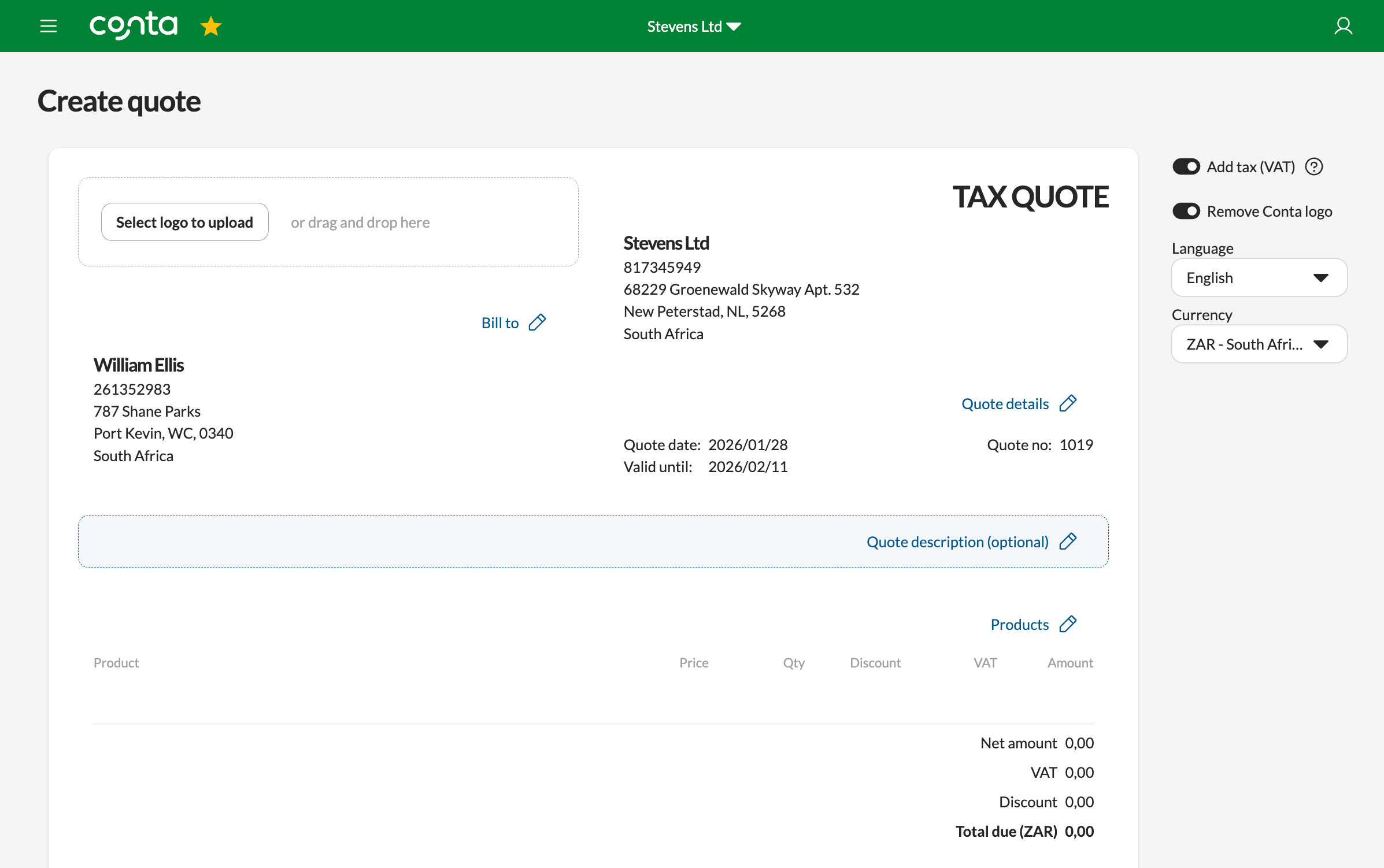
From the main page of Conta, click Create quote.
Filling out a quote is very similar to creating an invoice. After completing the quote details on this page, select Create quote. You will then be prompted to choose how the quote should be sent.
Quotes are currently sent by email. The recipient’s email address is filled in automatically if it exists on the customer record, but you can change it if needed. You may also add a CC recipient or choose to send a copy to yourself.
Before sending, you can decide whether to use Conta’s default email template or write your own message. The template includes the quote number, validity date, total amount, and clear options for the recipient to accept or decline the quote.
Once sent, the quote is marked as Pending.
The recipient can accept or decline
The recipient receives an email containing a summary of the quote and two response options: Accept or Decline.
When the recipient accepts the quote, the status updates automatically in Conta. No manual follow-up or confirmation is required. If the recipient declines, the quote will remain visible but will not be eligible for invoicing unless it is resent and accepted.
Quote statuses
After sending, a quote can have several statuses depending on the client’s action.
A Pending quote means it has been sent but not yet responded to. The delivery panel shows when it was sent and to which email address. You can resend the quote at any time if needed.
An Accepted quote means the client has confirmed they want to proceed. The acceptance date is recorded and shown on the quote overview.
Converting a quote to an invoice
Once a quote is accepted, a Convert to invoice button becomes available. You can also manually accept a quote if the customer has accepted verbally, for example.
Converting creates a new invoice based on the quote details, including products, prices, VAT, and customer information. The original quote remains unchanged and continues to serve as documentation of the exchange.
After conversion, the invoice can be edited, sent, and handled like any other invoice in Conta.
If you manually clicked accept on the quote, the accepted quote can be reverted back to pending. If the customer accepted the quote, this option is not available.
NOTE: Once a quote has been accepted, the customer info as well as the products being sold are locked down and cannot be changed.
Send history
Each quote includes a send history showing when it was delivered and to which recipient. This helps you verify whether the quote has already been sent and avoids unnecessary duplicates.